Icons
Using Mappedin JS with your own map requires a Pro license. Try a demo map for free or refer to the Pricing page for more information.
The @mappedin/icons package provides Mappedin's icon library with Content Delivery Network (CDN) backed Scalable Vector Graphics (SVG) assets. Icons are served from a global CDN with North America and Europe regions, and can be looked up by name, type, subtype, category, or tags. The IconService class provides methods for icon lookup, SVG fetching, and pre-fetching for performance optimization.
Full API documentation is available at docs.mappedin.com/icons/v8/latest.
Icons for annotations are not included in the @mappedin/icons package. Use the Annotations page to learn more about how to use icons for annotations.
Installation
The @mappedin/icons package is available on npm. Install it using one of the following commands:
NPM:
npm install @mappedin/icons
Yarn:
yarn add @mappedin/icons
Initialization
The IconService is a singleton that must be initialized before use. Call IconService.initialize() to create the instance. By default, icons are served from the North America CDN. To use the European CDN, pass CdnRegion.EU.
import { IconService, CdnRegion } from "@mappedin/icons";

// Initialize with the North America CDN (default)
const icons = IconService.initialize();

// Or initialize with the European CDN
const icons = IconService.initialize(CdnRegion.EU);
After initialization, the instance can be retrieved anywhere in an application using IconService.getInstance(). To re-initialize with a different CdnRegion, call IconService.reset() first.
Icon Types
Icons are organized into a hierarchy of types, subtypes, and categories. Each icon has an IconType that classifies it by its primary usage context.
| Type | Description |
|---|---|
| IconType.Categories | Icons for map locations and amenities. Further classified by IconSubtype. |
| IconType.Small | Compact icons designed for Labels on maps. |
| IconType.Input | Icons for UI input elements. |
| IconType.Metadata | Fallback and miscellaneous icons. |
Subtypes
Icons with IconType.Categories are further classified by IconSubtype:
| Subtype | Description |
|---|---|
| IconSubtype.Locations | Location category icons organized by business type (e.g., Food, Fashion, Entertainment). |
| IconSubtype.Amenities | Amenity icons (e.g., Washrooms, Accessibility). |
| IconSubtype.General | General purpose category icons. |
| IconSubtype.System | System icons (e.g., Elevator, Escalator, Stairs). |
Categories
Location icons within IconSubtype.Locations can be further filtered by IconCategory, which represents business domains such as FoodAndDrink, Fashion, Entertainment, Hospital, Transportation, and many more.
Icon Gallery
The following example displays all available icons organized by type and subtype, along with their names and tags.
Looking Up Icons
The IconService provides several methods for finding icons. Each method returns one or more MappedinIcon objects containing the icon's name, url, type, tags, and other metadata.
import { IconService, IconType, IconSubtype, IconCategory } from "@mappedin/icons";

const icons = IconService.initialize();

// Look up a single icon by its unique name
const icon = icons.getByName("information");
console.log(icon.url);  // Full CDN URL to the SVG file
console.log(icon.tags); // ['Information', 'Note']

// Filter by type
const categoryIcons = icons.getByType(IconType.Categories);

// Filter by subtype
const amenityIcons = icons.getBySubtype(IconSubtype.Amenities);

// Filter by business category
const foodIcons = icons.getByCategory(IconCategory.FoodAndDrink);

// Search by tags (case-insensitive)
const washroomIcons = icons.getByTags(["Washroom", "Restroom"]);

// Get all icons
const allIcons = icons.getAll();
| Method | Description |
|---|---|
| getByName() | Returns a single MappedinIcon by its unique name. Throws if not found. |
| getByType() | Returns all icons matching an IconType. |
| getBySubtype() | Returns all icons matching an IconSubtype. |
| getByCategory() | Returns all icons matching an IconCategory. |
| getByTags() | Returns all icons matching any of the provided tags. Case-insensitive. |
| getAll() | Returns every icon in the library. |
| getSmallIcon() | Returns the compact variant of an icon, if one exists. |
Fetching and Displaying Icons
The fetchSvg() method retrieves the raw SVG markup for an icon from the CDN. The static IconService.setSvg() method safely inserts the SVG into a DOM element with built-in sanitization that strips <script> elements, <foreignObject> elements, inline event handlers, and javascript: URIs.
const svg = await icons.fetchSvg("information");
IconService.setSvg(document.getElementById("icon-container") as HTMLElement, svg);
Styling Icons with CSS
Mappedin icon SVGs use fill="currentColor", which means they inherit the CSS color property of their parent element. This makes it straightforward to customize icon colors without modifying the SVG files.
.icon-container {
  color: #ff5733;
  width: 40px;
  height: 40px;
}
const svg = await icons.fetchSvg("information");
IconService.setSvg(document.querySelector(".icon-container") as HTMLElement, svg);
The following example demonstrates changing the color of icons in real time using a color picker.
Pre-fetching Icons
For applications that need icons available instantly without waiting for network requests, the IconService provides several pre-fetching methods. Pre-fetched SVGs are stored in an in-memory cache and returned immediately by subsequent fetchSvg() calls.
// Pre-fetch specific icons by name
await icons.prefetch(["information", "elevator-up", "book"]);

// Pre-fetch all icons of a given type
await icons.prefetchByType(IconType.Small);

// Pre-fetch all icons of a given subtype
await icons.prefetchBySubtype(IconSubtype.Amenities);

// Pre-fetch all icons in a business category
await icons.prefetchByCategory(IconCategory.FoodAndDrink);

// Check if an icon is already cached
icons.isCached("information"); // true

// Cached icons are returned instantly
const svg = await icons.fetchSvg("information");
| Method | Description |
|---|---|
| prefetch() | Pre-fetches a list of icons by name. |
| prefetchByType() | Pre-fetches all icons of a given IconType. |
| prefetchBySubtype() | Pre-fetches all icons of a given IconSubtype. |
| prefetchByCategory() | Pre-fetches all icons in a given IconCategory. |
| isCached() | Returns true if the icon's SVG is already in the cache. |
| clearCache() | Clears all cached SVG content. |
The following example demonstrates pre-fetching icons by name, type, subtype, and category. It also compares the performance of cached versus uncached fetches.
Using Icons of Mappedin CMS Categories
The category icons configured in the Mappedin Content Management System (CMS) are included in the @mappedin/icons package. The EnterpriseCategory.iconFromDefaultList property provides the icon name that maps directly to icons in the @mappedin/icons library.
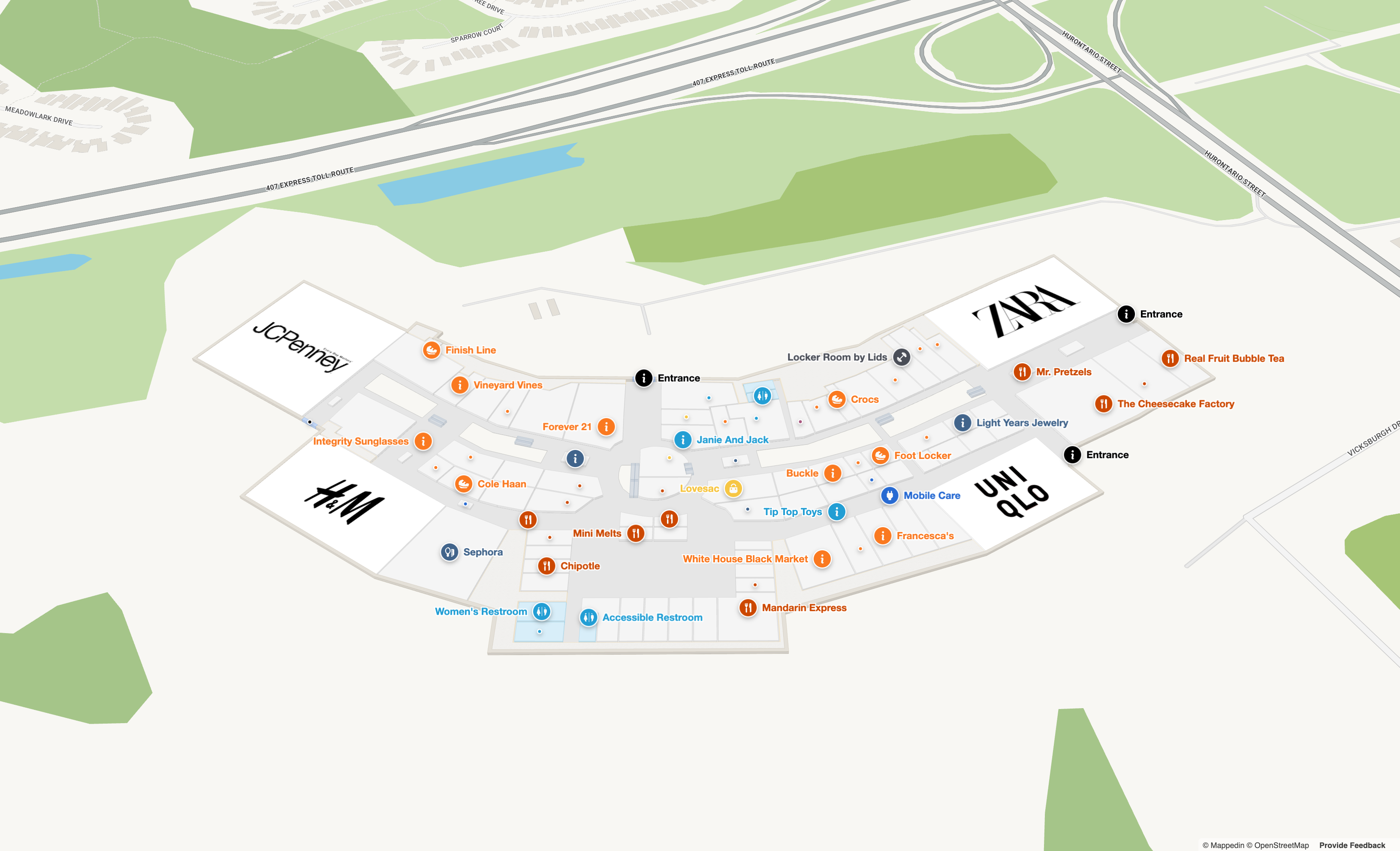
When displaying icons on Labels, the compact Small icon variant works best. The getSmallIcon() method or the MappedinIcon.smallIcon property returns the name of the small variant for a given icon. Because the SVGs use fill="currentColor", the fill color can be replaced in the SVG string before passing it to the Label's appearance.icon option.
The following React example loads the Mappedin Demo Enterprise map and labels each enterprise location with its name and category icon. The icon color is set to white and the Label background color is set to match the category color.