Microsoft Places Sync
The automated sync pushes indoor map data from Mappedin Maker to Microsoft Places. Buildings, floors, rooms, workspaces, desks, and sections are created in Places, along with an IMDF file for visualization.
The automated sync creates its own resources and cannot connect to pre-existing Exchange resources. If linking to existing resources is needed, or more control over the produced IMDF file is required, use the IMDF Export instead.
Before starting, complete the Mapping Requirements checklist to ensure the map is prepared correctly.
Getting Started
1. Prerequisites
Before syncing for the first time, make sure the following requirements are met:
- Microsoft 365 Subscription
- You must have a Microsoft 365 or Office 365 subscription that includes Places core features
- Supported plans include:
- Microsoft 365 Business Basic, Standard, Premium
- Office 365 E1, E3, E5
- Microsoft 365 E3, E5
- Education A1, A3, A5
- Frontline F1, F3
- Teams Essentials and Teams Enterprise
- See link above for up to date list
- Additionally, Places Finder, individual desk booking, and other advanced features require a Teams Premium license
- Admin Role Required
- The first sync must be completed by a user with one of these roles:
- Global Administrator
- Exchange Administrator
- Places Administrator
- The first sync must be completed by a user with one of these roles:
- Consent
- On first sign in, a Microsoft permissions prompt will appear. An admin must grant consent before syncs can succeed
- User Access After Consent
- After consent is granted, any user with one of the above roles can run syncs for the same tenant
If consent isn't granted the first time, sync will fail until an admin completes this step.
If your organization recently set up Microsoft 365 or enabled Microsoft Places for the first time, you may need to wait 24–48 hours for Microsoft to finish provisioning the Places service before syncing.
2. Running Your First Sync
Step 1 — Open Mappedin
- Sign in to Mappedin.
- Open the map you intend to sync, or create a new map.
Unsure how to create an indoor map? Watch the Mappedin Guided Video Tutorials to get started.
Step 2 — Start the Sync
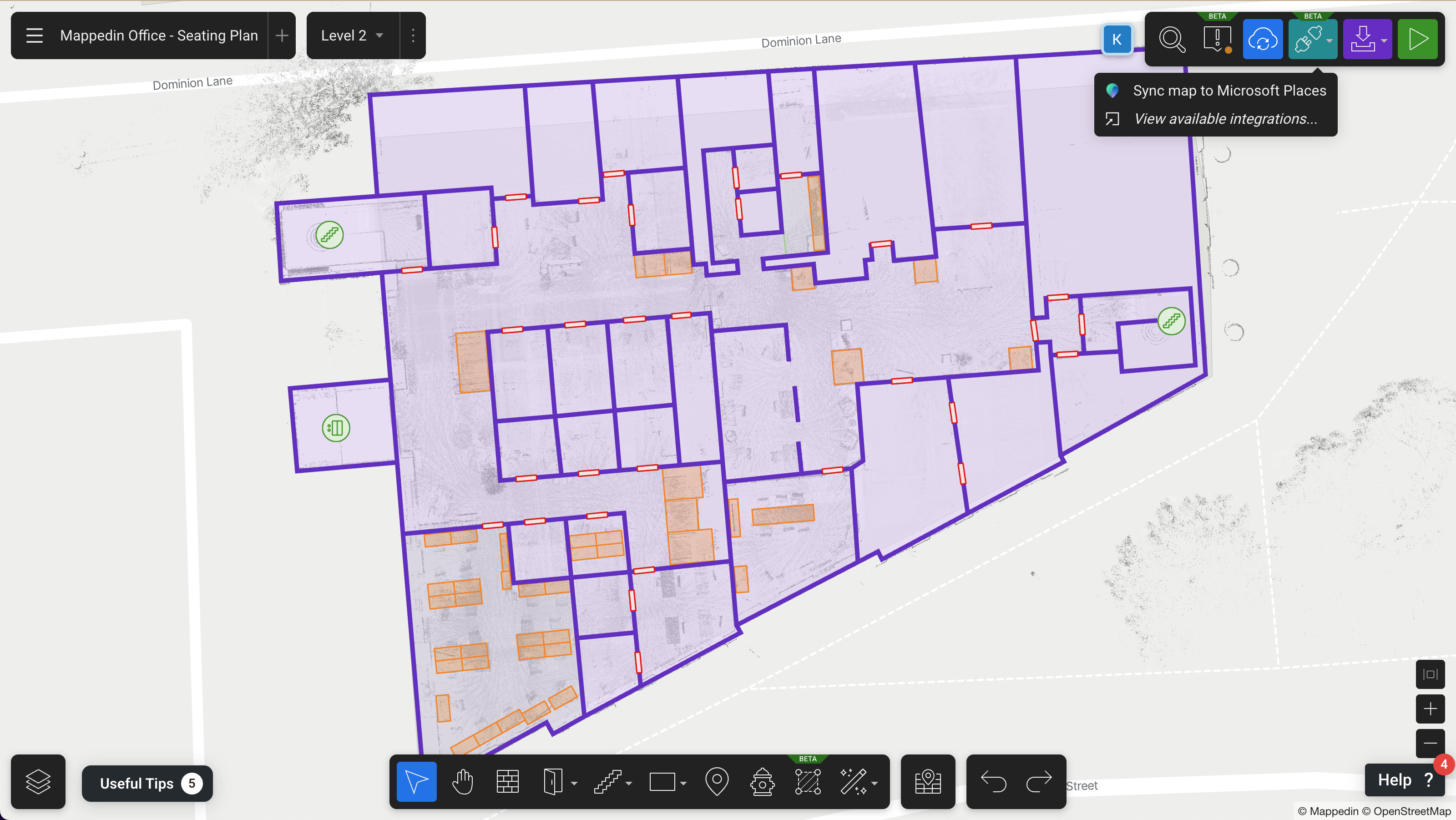
- Click the Sync to Microsoft Places button in the integration dropdown in the top right of the map editing screen.
Step 3 — Sign In To Microsoft
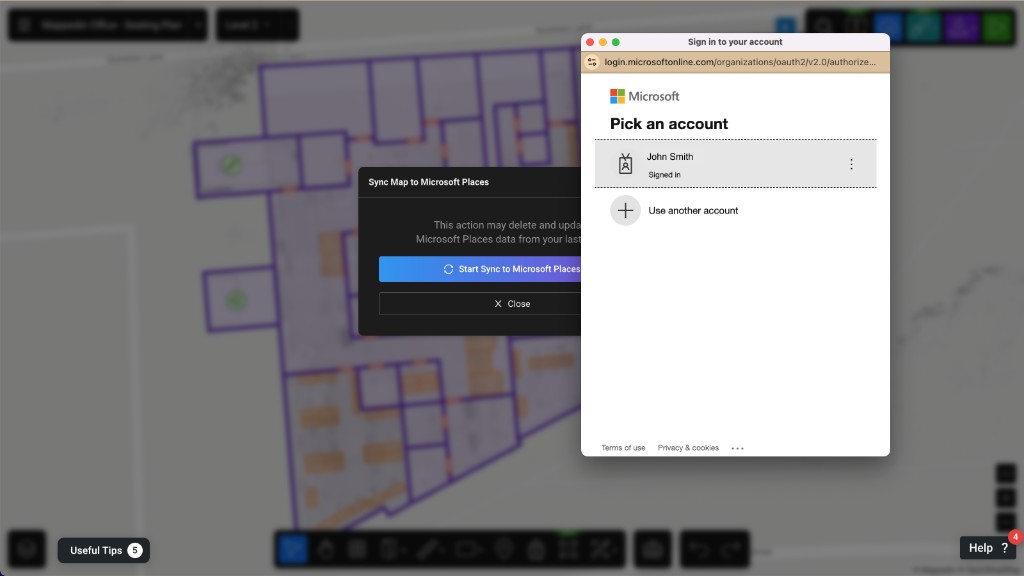
- A Microsoft sign in window will open.
- Sign in with a Microsoft account that has one of the required admin roles
Step 4 — Grant Consent (first time only)
- If this is the first sync for the tenant, a consent screen is shown
- Check "Consent on behalf of your organization"
- Review the requested permissions and click Accept
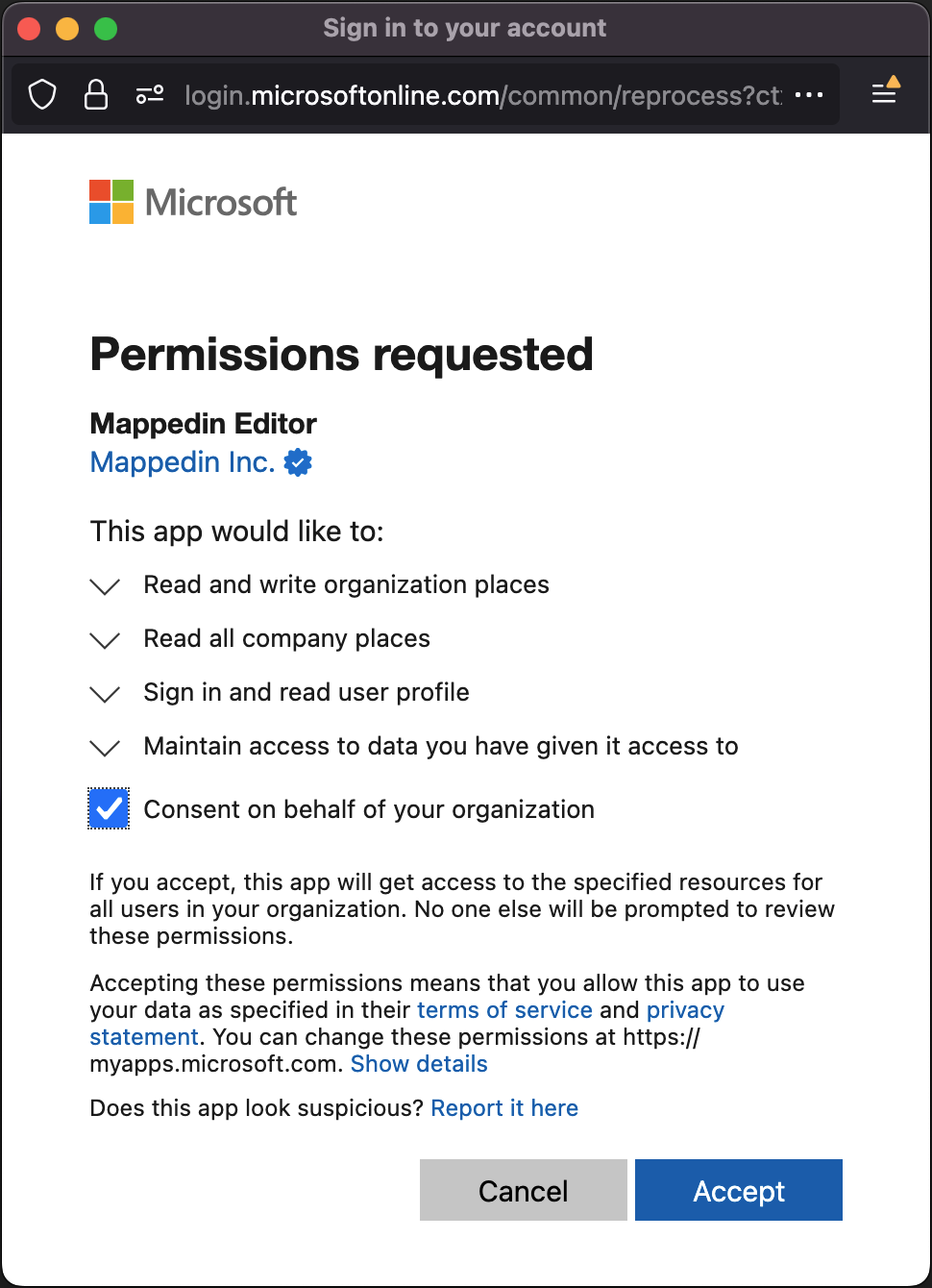
Only admins can grant consent. Once granted, other users with the correct role can sync without seeing this screen again.
Step 5 — Wait for the Sync to Complete
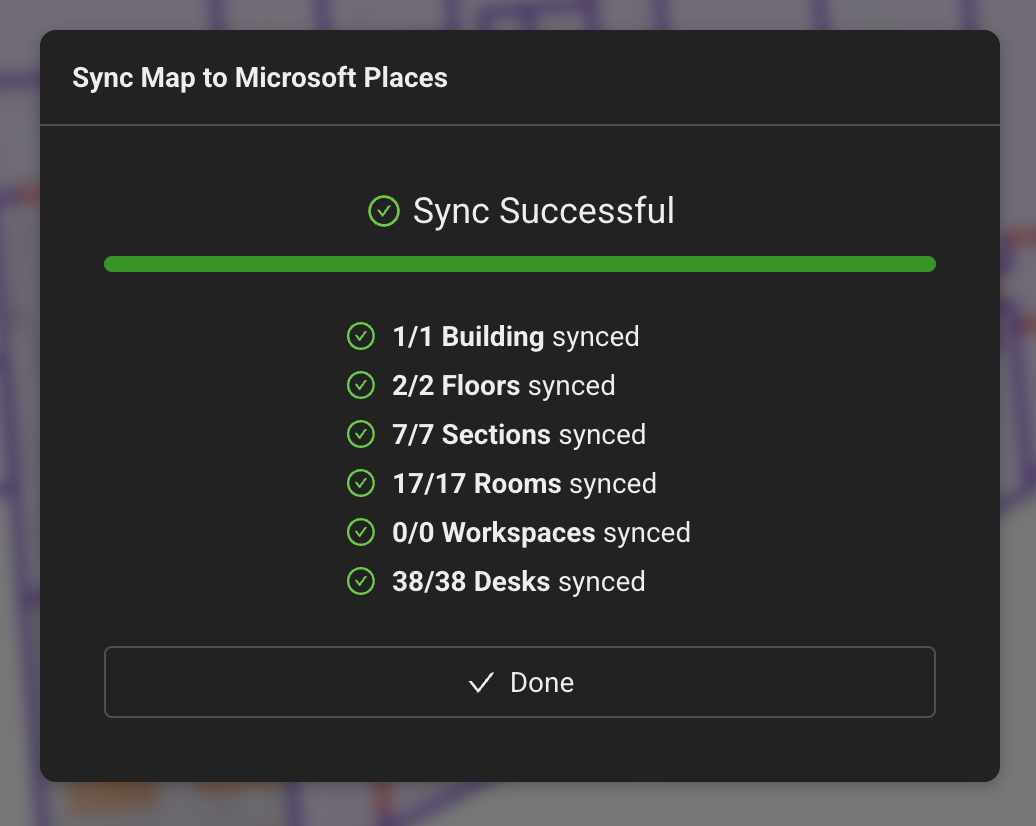
- Mappedin will automatically push the building data, locations, and IMDF to Microsoft Places
- A confirmation message will appear to indicate the sync is successful
It is safe to re-run syncs at any time to update map in Microsoft Places.
3. What to Expect After Sync
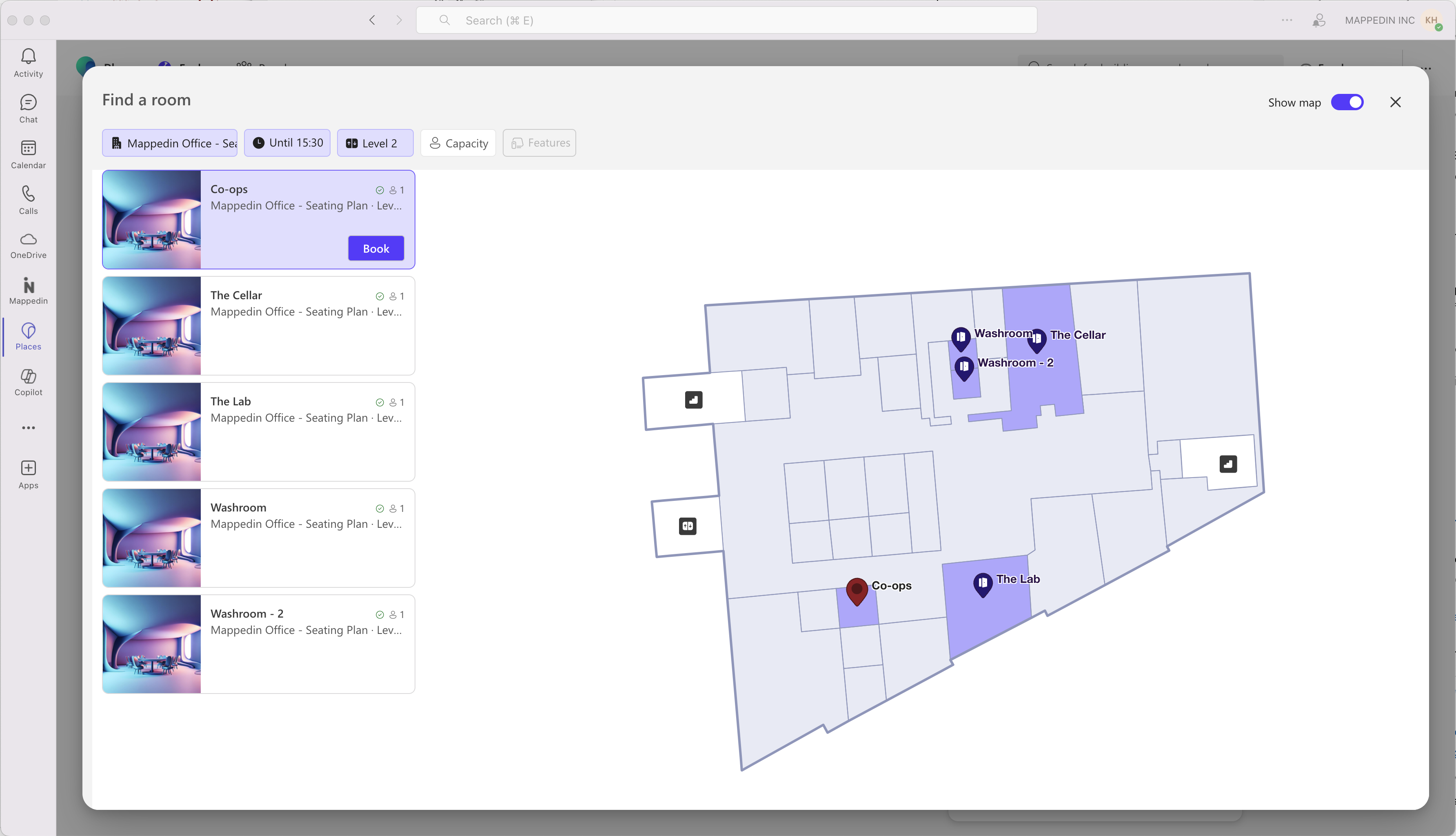
The sync automatically creates and updates resources directly in Microsoft Places. It is not necessary to pre-create resources or upload CSVs in PowerShell.
- A new building is created in Places, or an existing one (if created by Mappedin) is updated
- Floors, sections, rooms, workspaces, and desks are created with the same names and descriptions from Mappedin
- Rooms sync if they are named and have capacity of at least 1
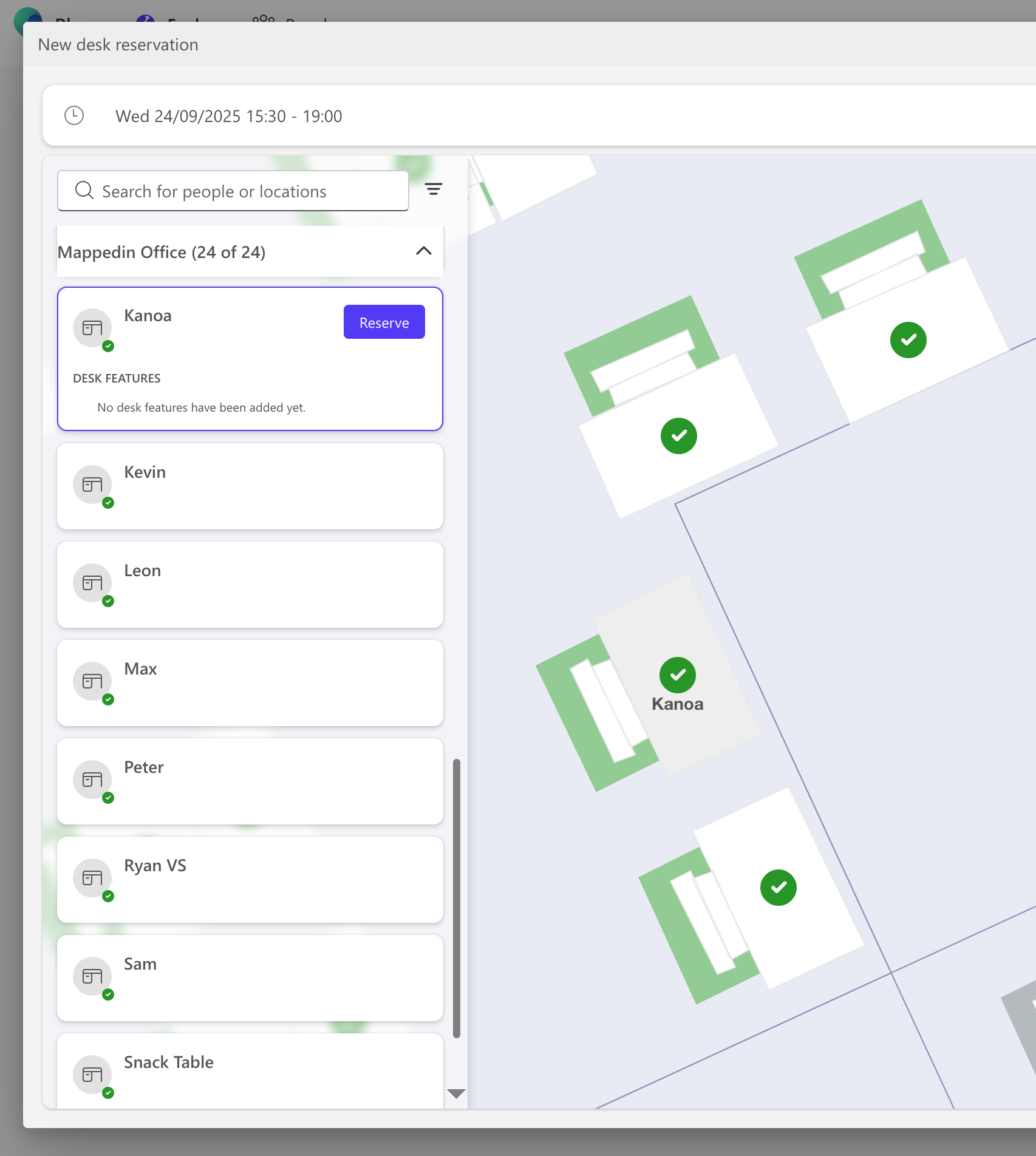
- Objects sync as desks (capacity = 1), workspaces (capacity > 1), or are skipped (capacity = 0 or unnamed)
- Objects appear as icons with the same rotation set in Mappedin
- An IMDF file is uploaded for visualization
Only resources created by Mappedin are modified. Pre-existing resources not parented to Mappedin-controlled resources are left untouched.
New or updated resources may take up to 48 hours to appear in Microsoft 365 apps.
Reference
How Data is Synced
- Buildings & Floors
- One Mappedin building = one Places building
- If the building already exists in Places from a Mappedin sync, it is updated
- Buildings created outside of Mappedin are not modified
- A single Mappedin building can be synced to multiple tenants; resources are tracked per tenant ID
- Empty floors (no walls or rooms) in Mappedin are not synced
- All buildings in a tenant must have unique names.
- Rooms & Objects
- Only named items are synced
- Rooms sync if named and capacity ≥ 1
- Objects:
- Capacity = 1 → Desk
- Capacity > 1 → Workspace
- Capacity = 0 → not synced
- Object icons in Places match the rotation set in Mappedin (geometry is not yet represented)
- Sections
- Areas in Mappedin map to Sections in Places
- Objects inside an area are parented to that section
- Each floor will have a default section created. Objects not inside a named area are parented to the default floor section
- Names & Properties
- Names must be unique; duplicates are auto-suffixed (-1, -2, …)
- Synced fields:
- Name → Display Name (everything)
- Description → Description (rooms, workspaces, desks, sections)
- Capacity → Capacity (rooms, workspaces, desks)
- Elevation → Sort Order (floors)
- Geometry
- An IMDF is generated, correlated, and uploaded on every sync
- Used for visualization in Microsoft Places
How Sync Works
- First Sync
- Creates a new building, floors, sections, rooms, workspaces, and desks
- Parent-child relationships are preserved
- Later Syncs
- Updates resources created by Mappedin
- If a resource cannot be updated, it may be deleted and re-created
- External resources not created by Mappedin and not parented to resources created by Mappedin are not modified
- Stale Resources
- Sometimes resources cannot be removed automatically
- These remain as stale entries and must be deleted manually in the Places Admin dashboard
Troubleshooting
If the sync fails or results don't appear as expected, see the Troubleshooting & FAQ page.