Mapping Requirements
Complete the requirements below before sending a map to Microsoft Places using either the automated sync or the IMDF export.
New to Mappedin Maker? Watch the Mappedin Guided Video Tutorials to get started.
Quick Reference
Both Methods
- Single building per map
- Location labels on all bookable spaces
- No duplicate location names
- Rooms fully enclosed with doors and capacity ≥ 1
- Desks with capacity ≥ 1, correct orientation, and rectangle geometry
Differences by Method
| Requirement | Automated Sync | IMDF Export |
|---|---|---|
| Building name | Must be unique within the Places tenant | Not required to match — referenced by ID |
| Floor names | No matching required — sync creates floors from Maker | Must match existing floor resources in Places for correlation |
| Exchange resources | Not required — sync creates resources using names from Maker | Required — names must match pre-existing Exchange/Places resources |
| Advanced options | Not available | Preserve rotation, generate wall units, exclude uncorrelated objects, treat uncorrelated objects as furniture |
Shared Requirements
The following rules apply regardless of integration method.
Pre-Mapping Checklist
- Single building only. Multi-building campus maps are not supported for the Places integration. Each building must be mapped as a separate venue.
When using AI mapping, turn off location labeling. AI-generated labels may be incorrect and require manual cleanup before syncing or exporting.
Locations and Naming
Location naming is the #1 source of integration failures. Verify all names before syncing or exporting.
Every bookable space (room or desk) must have a location label in Mappedin Maker.
| Rule | Details |
|---|---|
| Every bookable space needs a location | Attach a location label to each room or desk object that should be bookable in Places. |
| No duplicate location names | Every location must be unique. Use names like "Office 1002" instead of "Office". The only exception is restrooms, which can share a name. |
| Clean up unattached locations | Locations not attached to a room or object have no geometry and are ignored during export and sync. Removing them keeps the Locations panel organized. |
| One location per space | A single location name should not be attached to multiple separate spaces. |
Turn on labels in Maker's Layers menu to visually verify that all bookable spaces are named correctly before syncing or exporting.
Setting a Location Name
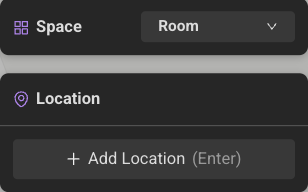
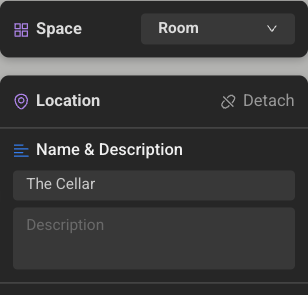
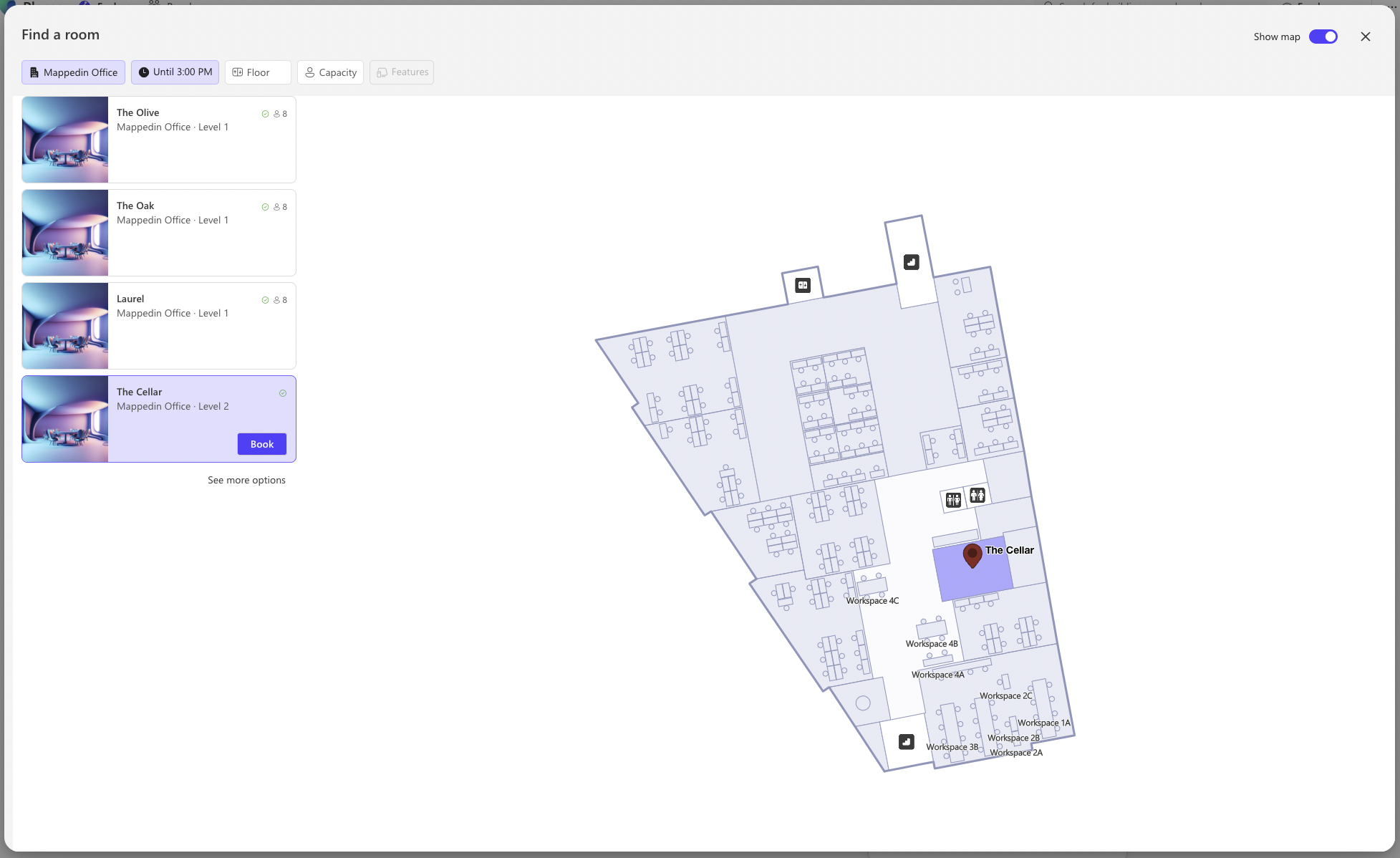
To set a location name, click on the room or object in Mappedin Maker and press the + Add Location button. Enter the name and press enter to save.
Mappedin Room Name
Corresponding Places Conference Room Name
Rooms
Room vs. Desk Booking
Before mapping, determine how each space should be booked in Places:
| Book as Room | Book as Desk | |
|---|---|---|
| How to map | Map the space as a Room. Do not place Objects inside it. | Place a Desk Object inside the space and attach the location to the object, not the room. |
| Places requirement | A Room resource in Exchange/Places. Created automatically by the sync; must pre-exist for the IMDF export. | A Desk resource in Exchange/Places. Created automatically by the sync; must pre-exist for the IMDF export. |
| Use case | Conference rooms, meeting rooms, private offices | Cubicles, hot desks, open-plan workstations |
Room Mapping Rules
- Rooms must be fully enclosed by walls. Partial walls or room dividers do not render in Places. Only fully enclosed spaces appear.
- Every room needs a door. A room without a door is categorized as "nonpublic" in the IMDF export and will not appear as a bookable or navigable space in Places.
- Rooms must have capacity of at least 1.
A room with no door is the most common reason rooms "disappear" in Places. Always add a door to every room that should be visible.
Watch the Mappedin Walls & Rooms Tutorial for help with creating rooms.
Special Room Naming
Places assigns icons based on room names. The following naming conventions are recognized:
| Category | Accepted Names (case-insensitive for icon detection) | Icon in Places |
|---|---|---|
| Restroom | "Washroom", "Toilet", "Restroom", "Bathroom" | Yes |
| Stairs / Escalator | Detected automatically via connections | Yes |
| Elevator | Detected automatically via connections | Yes |
| Kitchen | "Kitchen", "Kitchenette", "Cooking" | No — encoded correctly but not rendered by Places |
Desks
Watch the Mappedin Object Tutorial for help with creating objects.
- Use the Rectangle Object tool. Do not use circles or custom objects for desks. Custom objects produce unexpected orientation in Places.
- Desks must have capacity of at least 1. Objects with capacity = 0 are skipped during sync and export.
- Desk orientation matters. Orientation in Places is determined by the rotation stem in Maker. Ensure all rotation stems point upward for consistent orientation.
- Do not snap desks together. Leave a small gap between desk objects. Snapped desks may merge or render incorrectly.
Hold Command (Mac) or Ctrl (Windows) when stamping desks to disable snapping.
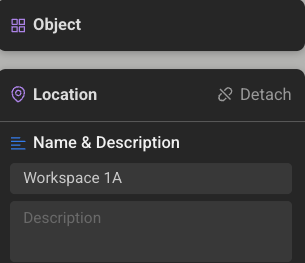
Mappedin Object Name
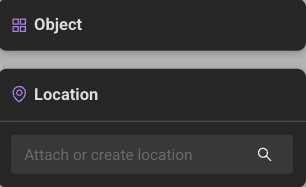
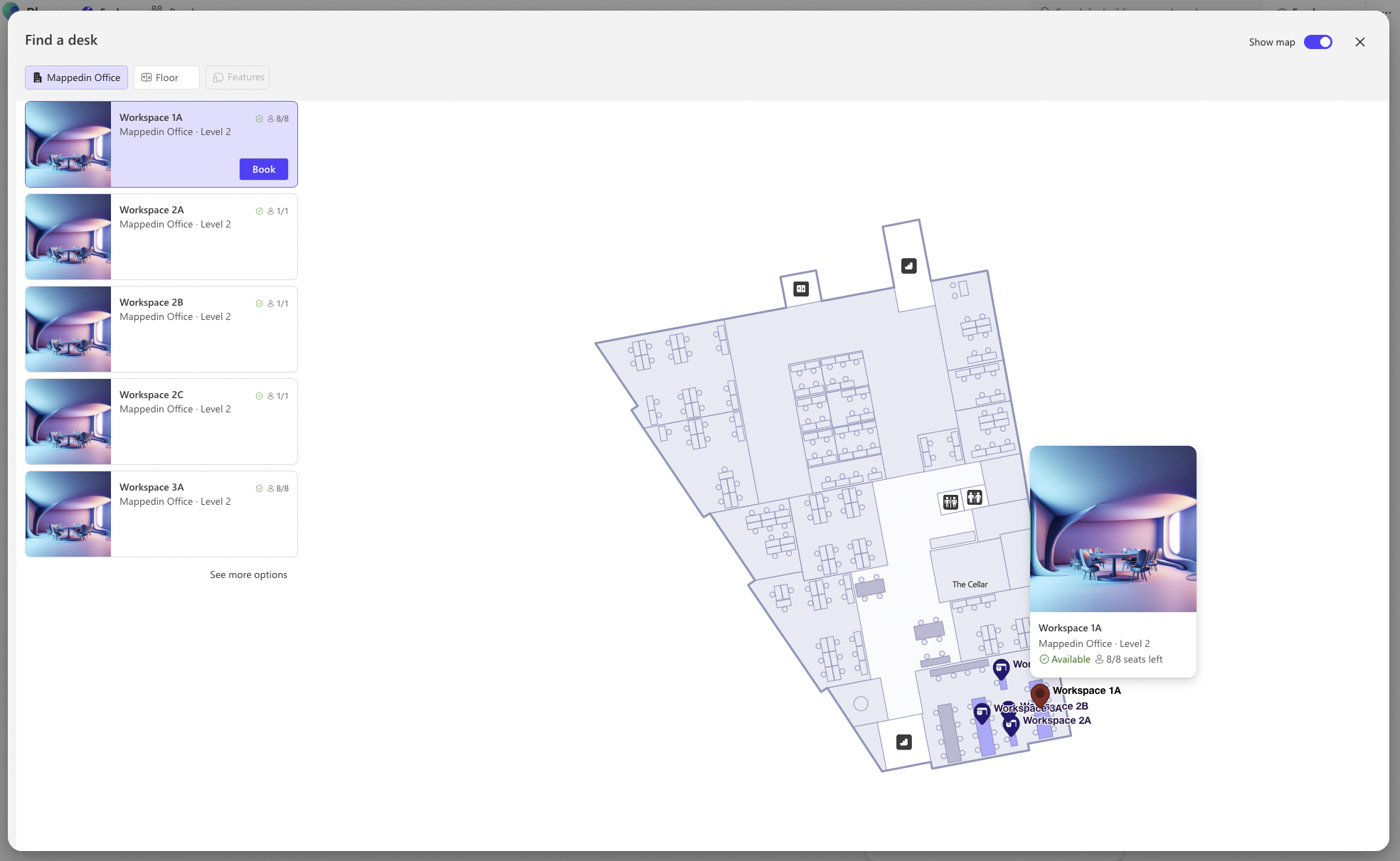
Corresponding Places Desk Pool Name
Connections
Stairs and elevators can be added to the map and appear in Places with their respective icons. They do not need to be named — connections are detected automatically.
Sections
Sections are mapped using the Areas tool in Maker. Give each area a name to correlate it with a section in Places. Sections have no visual representation in Places but are used for organizational and data correlation purposes.
Mappedin Features Not Supported by Places
| Feature | Notes |
|---|---|
| Point Tools / POIs | Not part of the Places IMDF spec |
| Safety Annotations | Not part of the Places IMDF spec |
| Map Views | Not part of the Places IMDF spec |
| amenity.geojson | Not supported by the Places IMDF spec |
| Room divider walls | Partial walls that do not fully enclose a space are not rendered |
Automated Sync Requirements
The following requirements apply only when using the automated sync.
- Unique building name. The building name in Maker must be unique within the Microsoft Places tenant. If a building with the same name already exists and was not created by Mappedin, the sync will fail.
- Names become resource names. The sync creates rooms, desks, and workspaces in Places using the names from Maker. Ensure location names are descriptive and correctly spelled before syncing.
- Sync creates its own resources. The automated sync cannot connect to pre-existing Exchange resources. To link to existing rooms or desks in Exchange, use the IMDF export instead.
- Capacity determines resource type. Objects with capacity = 1 sync as Desks, capacity > 1 as Workspaces, and capacity = 0 or unnamed objects are skipped.
IMDF Export Requirements
The following requirements apply only when using the IMDF export.
- Location names must match existing resources. Names in Maker must exactly match the display names of pre-existing rooms, desks, or workspaces in Exchange/Places. Matching is case-sensitive — spelling and capitalization must be identical.
- Floor names must match existing resources. Floor names in Maker must match the corresponding floor resources in Places. Mismatched floor names cause correlation failures.
- Building is referenced by ID. The building name in Maker does not need to match the Places building name. The export uses the building's PlaceId from the CSV.
- CSV is required for correlation. A CSV exported from Places via PowerShell is uploaded during the IMDF export to correlate Mappedin spaces with Places resources.
- Advanced options. The IMDF export includes the following optional toggles under Advanced Options:
- Preserve rotation — Preserve the rotation of shapes or objects instead of letting Places infer it. Enable this if desk rotation appears incorrect after export.
- Generate wall units — Add wall geometry as structure units in the exported IMDF.
- Exclude uncorrelated objects — Exclude fixtures for shapes or objects that are not correlated in Places from the exported IMDF.
- Treat uncorrelated objects as furniture — Assign uncorrelated shapes or objects the "furniture" category instead of "desk" in the exported IMDF.
Resource Mapping Reference
The following table summarizes how resources in Mappedin map to resources in Microsoft Places. For the IMDF export, names in Maker must match pre-existing resource display names. For the automated sync, names from Maker become the resource display names.
| Microsoft Places Resource | Mappedin Resource | Naming |
|---|---|---|
| Conference Room — A room that can be booked. | Room — An area surrounded by walls with 1 or more doors. | Mappedin Room Name corresponds to the Conference Room Display Name. |
| Desk Pool — A pool of desks with one or more seats that can be booked. | Object — An object placed within a space. | Object Name corresponds to the Desk Pool Display Name. |
| Desk — An individual desk that can be booked. | Object — An object placed within a space. | Object Name corresponds to the Individual Desk Display Name. |
| Floor — A level in a building. | Floor — A level in a building. | Places prefixes the Mappedin floor name with Floor. Sort order should match the elevation in Mappedin. |
| Building — The top level container for floors. | Map — A map containing all elements listed above. | Configured during integration. See the IMDF Export or Automated Sync. |
| Restroom | Room named bathroom, restroom, washroom, or toilet | Mappedin Room Name matches one of the listed names. |
| Kitchen | Room named kitchen, kitchenette, or cooking | Mappedin Room Name matches one of the listed names. |
| Office | A room with a name that doesn't match a conference room name. | — |
| Unspecified | A room without a name. | — |