For Organizations New to Snowflake
No Snowflake account? No problem. We'll set up everything for you:
The setup process:
-
We create your account - Mappedin sets up a specialized Snowflake account (called a "reader account") with your analytics data already available
-
We create your login - We'll create a user account and send you an invitation to access the system via email. We will provide you with a URL containing the Snowflake reader account username and temporary password. Once you login, you will be asked to change password and set up multi-factor authentication.
URL: https://a1b2c3d4-customer1.snowflakecomputing.com
User: customer1@company.com
Temp Pass: secret_password
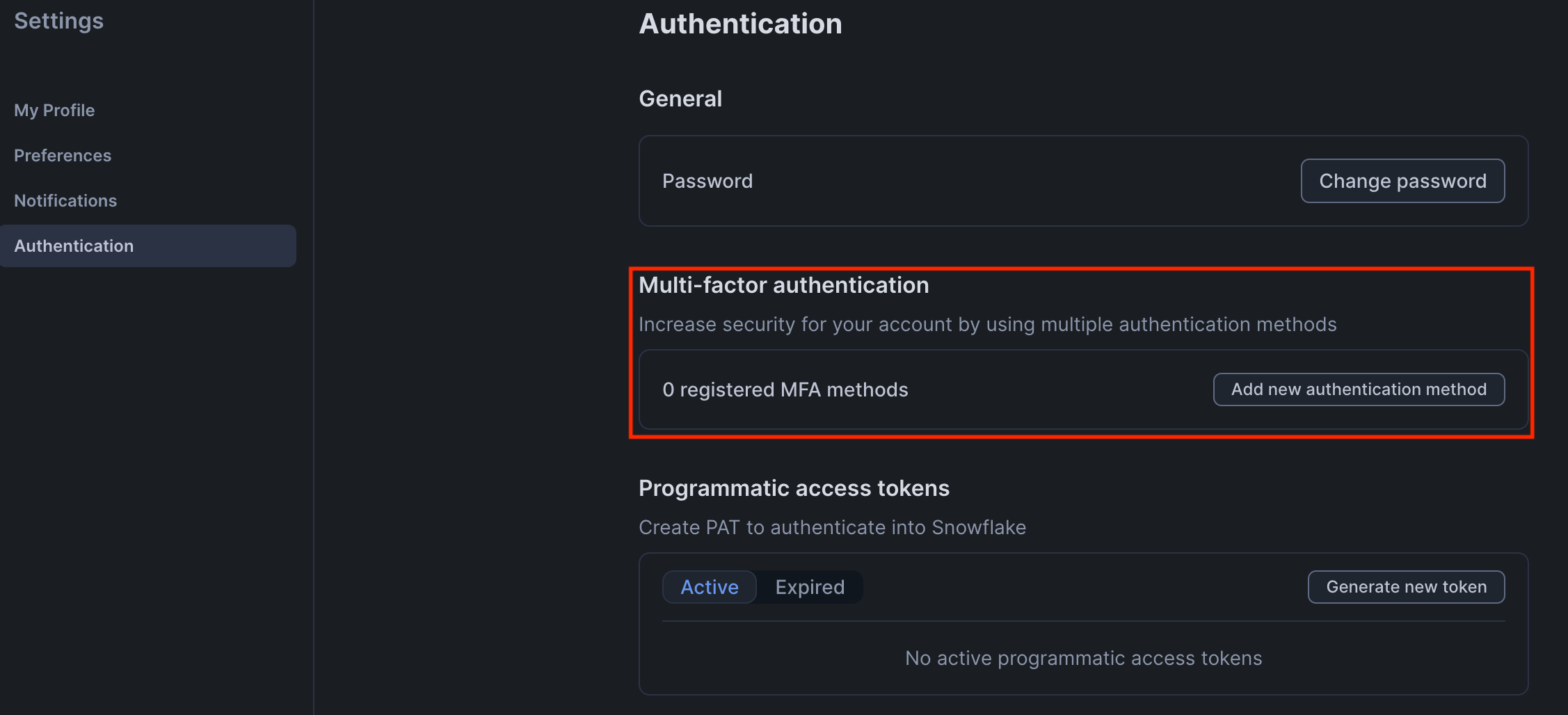
- Set up MFA (optional) - If you need to add an extra layer of security to your account, follow these steps:
- Click username that's on left bottom → Settings → Authentication → Add new authentication method
- As of now, snowflake supports 3 types of MFA methods:
- Passkey
- Authenticator
- Duo
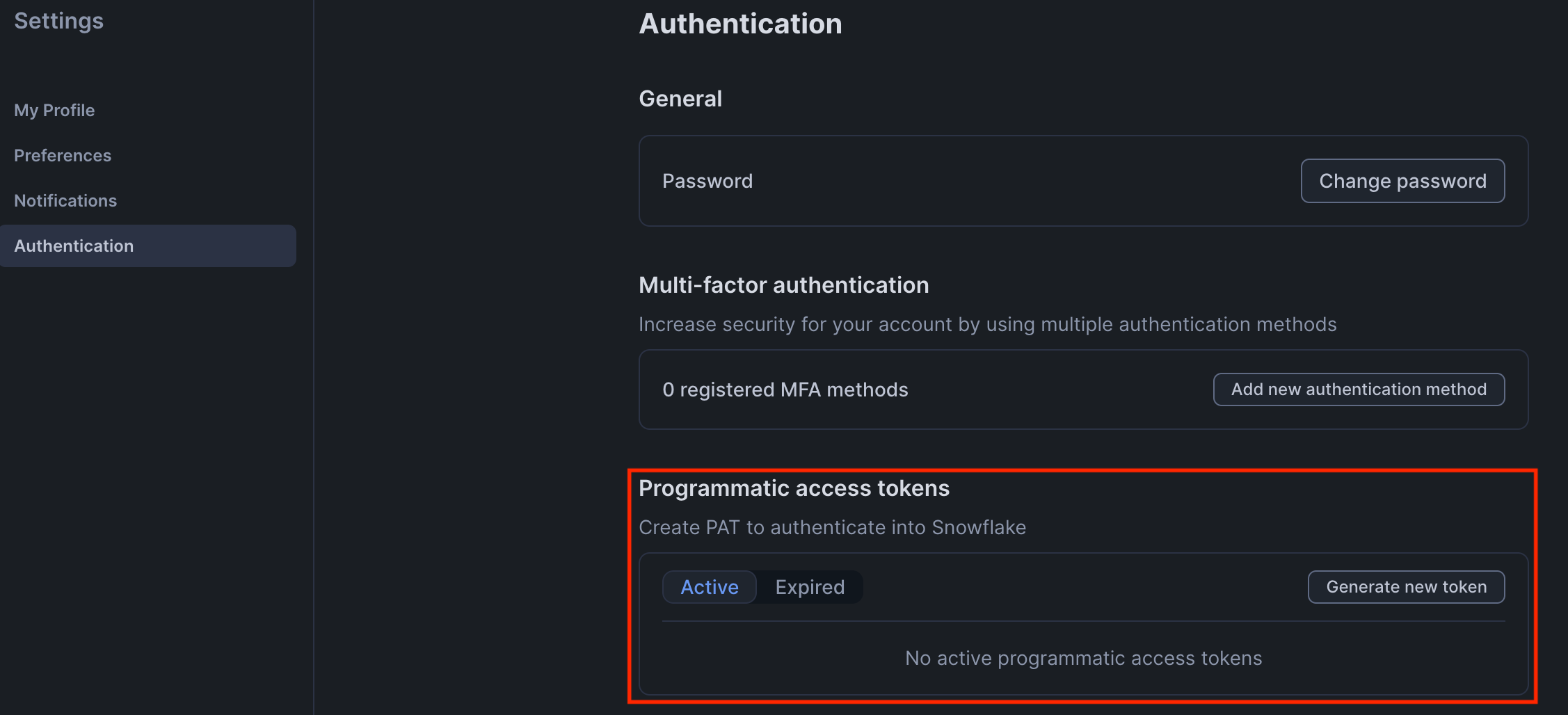
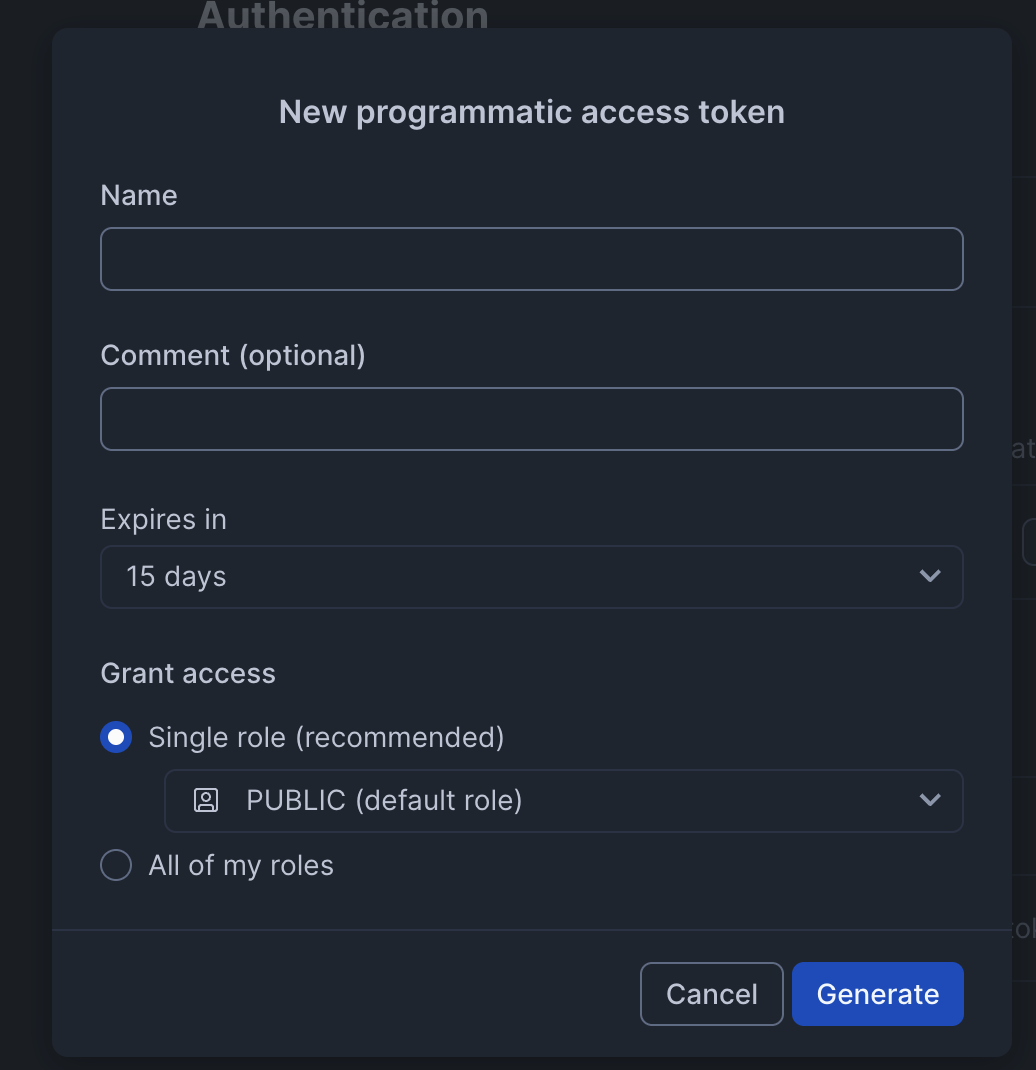
- Manage Programmatic Access Tokens (PAT) - A PAT provides a secure way for these tools to access your data automatically, without requiring someone to manually log in each time.
- Click username that's on left bottom → Settings → Authentication → Generate new token
- Create/rotate/delete a PAT. You are responsible for managing programmatic access token lifetimes, rotation, etc.
-
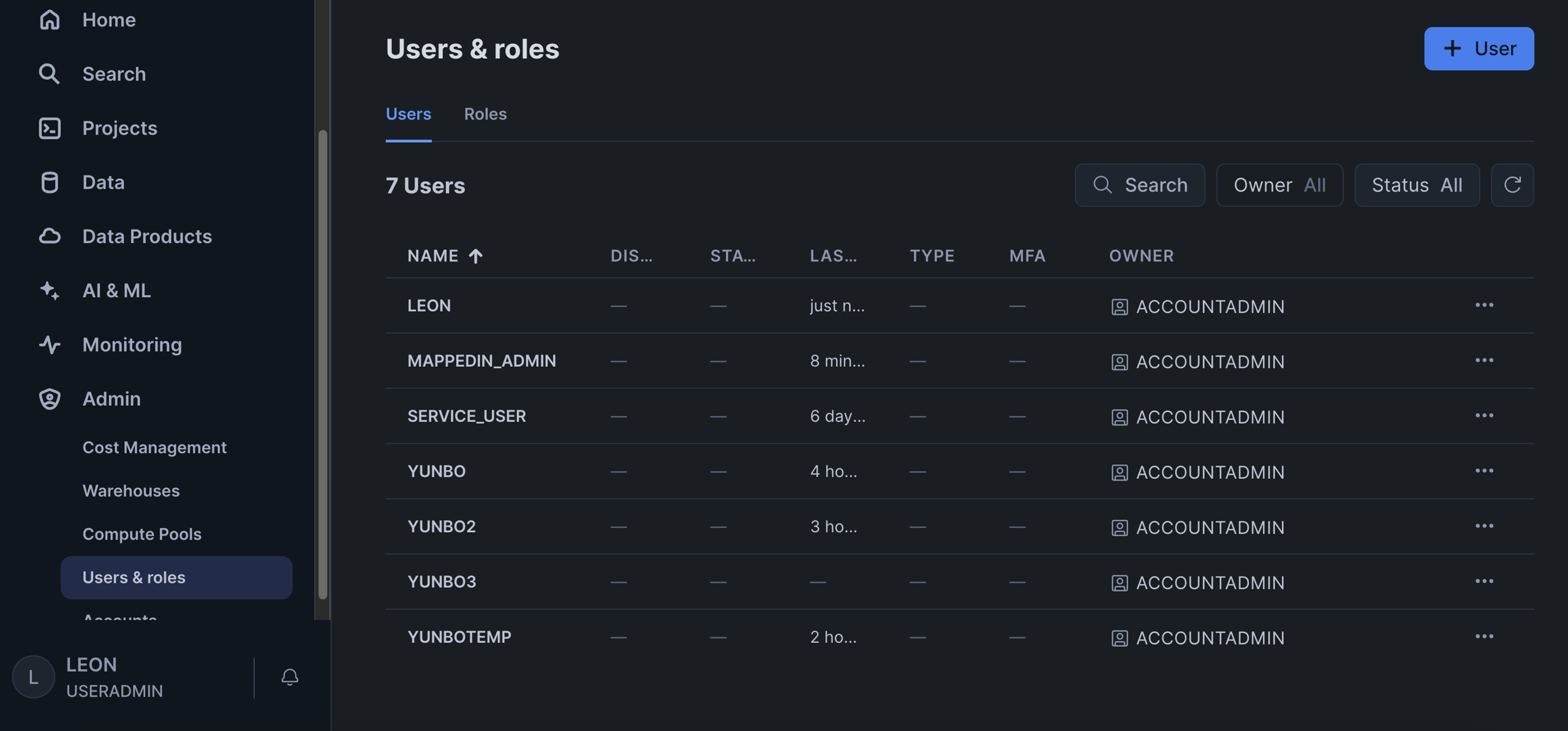
Managing Users - The provided SERVICE_USER user has permission to create new users through the USERADMIN role.
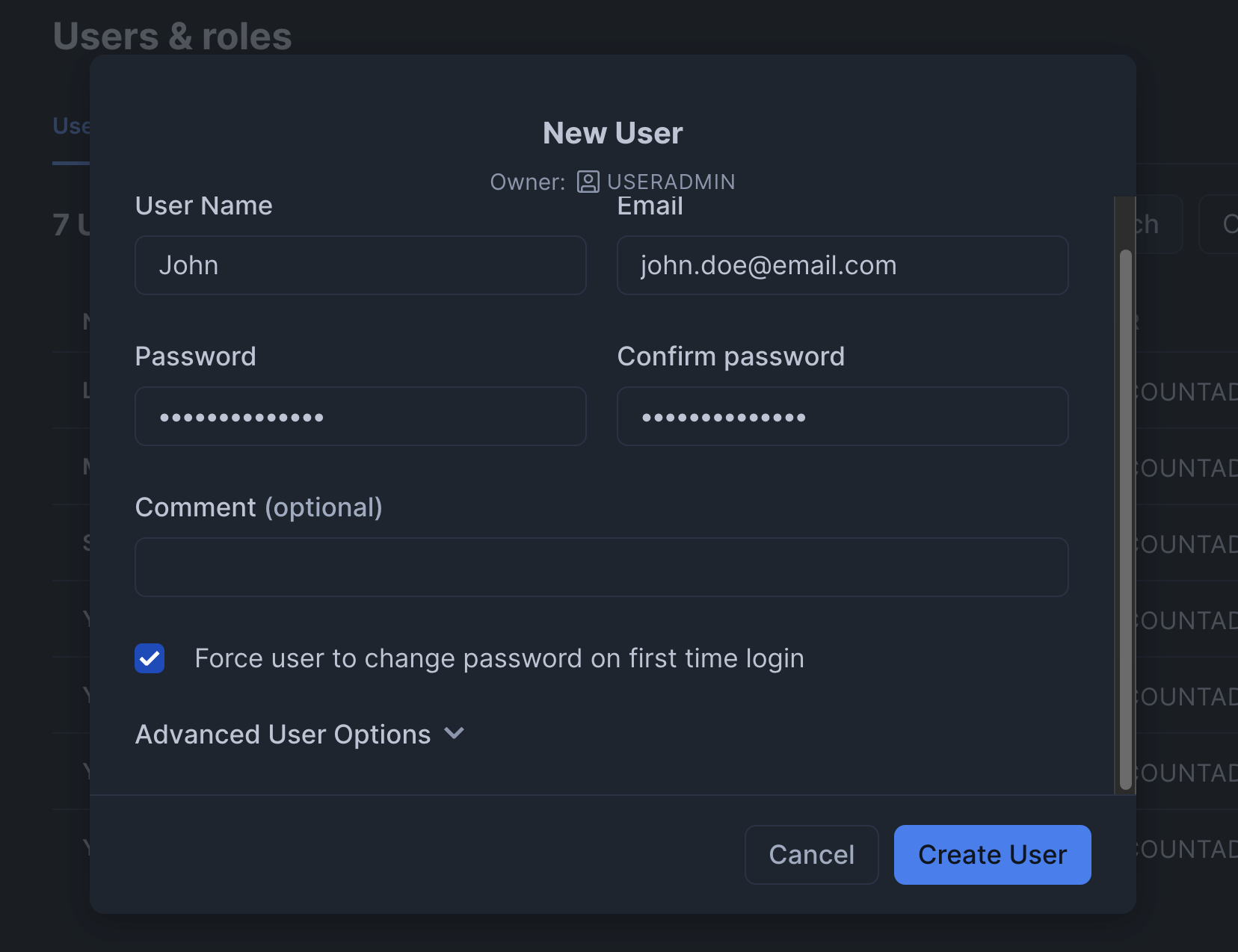
- Creating a new user
- Change to the USERADMIN role by clicking on your user info in the bottom left corner.
- Menu → Admin → Users and Roles
- Click on the blue plus button in the top right to create a new user.
- Fill in at least the User Name and Password fields and choose appropriate options then press Create User.
- The user does not automatically have access to your data. To get access to your data the user must be granted the READER role.
- Creating a new user
-
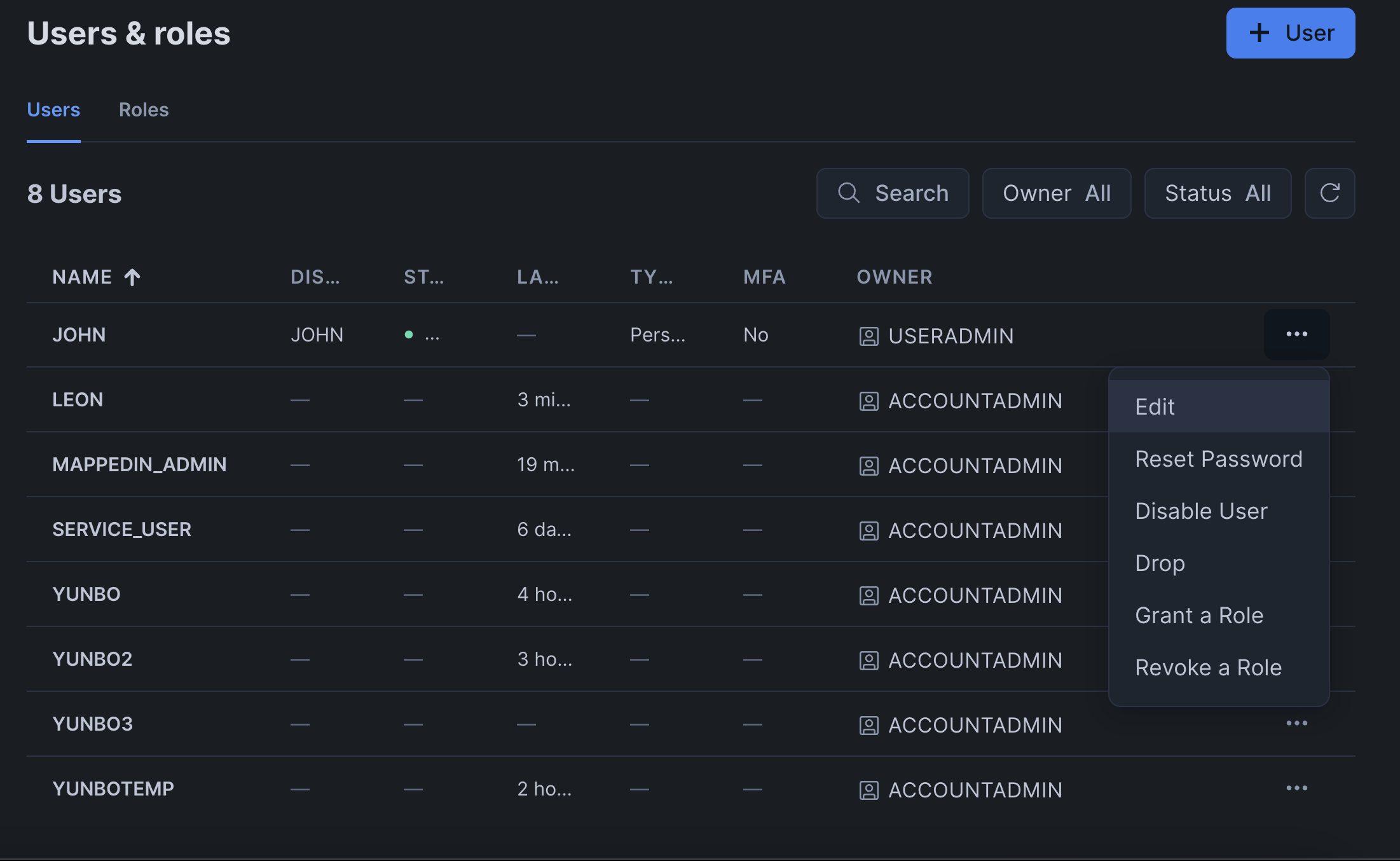
Grant roles to users
- Find the user in the list and open the menu for that user's row and select Grant a Role
- From the dropdown select READER and click Grant.
- You'll be able to edit users created/owned by the USERADMIN role only. USERADMIN role cannot assign roles other than the READER role to users.
- Running Queries
- Data Base
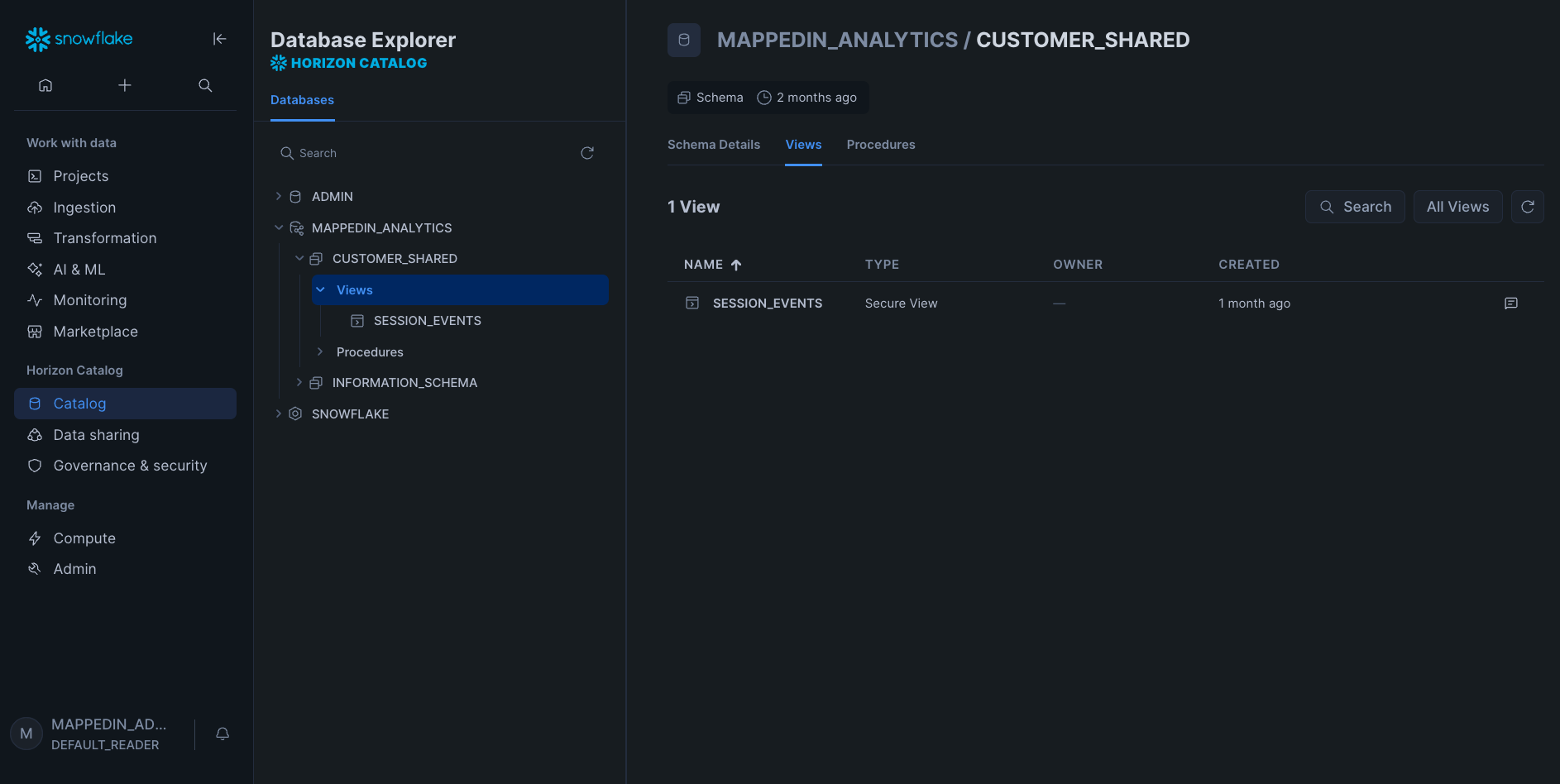
- To access your analytics database:
- Navigate to Menu → Catalog → Database Explorer
- Locate the database named MAPPEDIN_ANALYTICS
- Within this database, you will find the session_events_view view containing your analytics data
- To access your analytics database:
- Data Base
- SQL Worksheet Creation
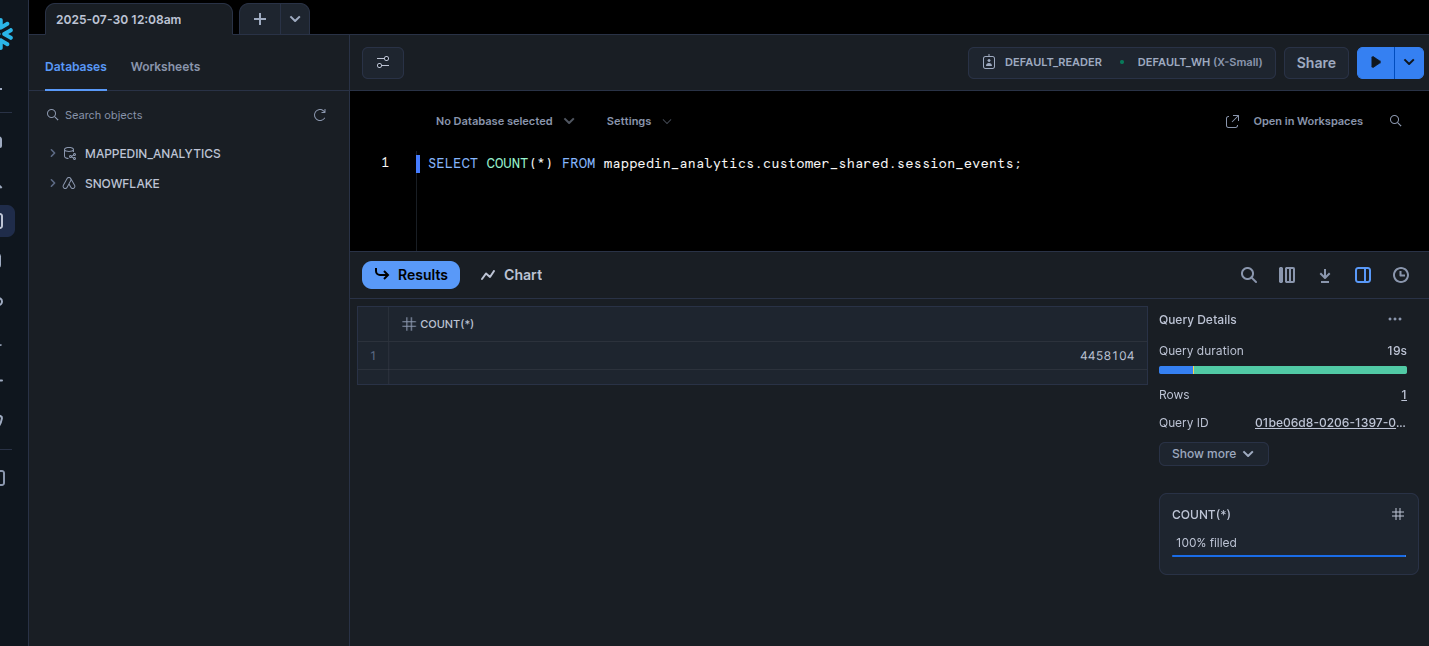
- Snowflake worksheets provide an integrated development environment for executing SQL queries and analyzing your data. These worksheets allow you to write, test, and run SQL statements directly against your analytics database.
- To create a SQL worksheet:
- Navigate to Menu → Projects → Worksheets
- Select Create (located in the top-right corner)
- A new SQL worksheet will be generated where you can compose and execute your queries
- Warehouse Configuration
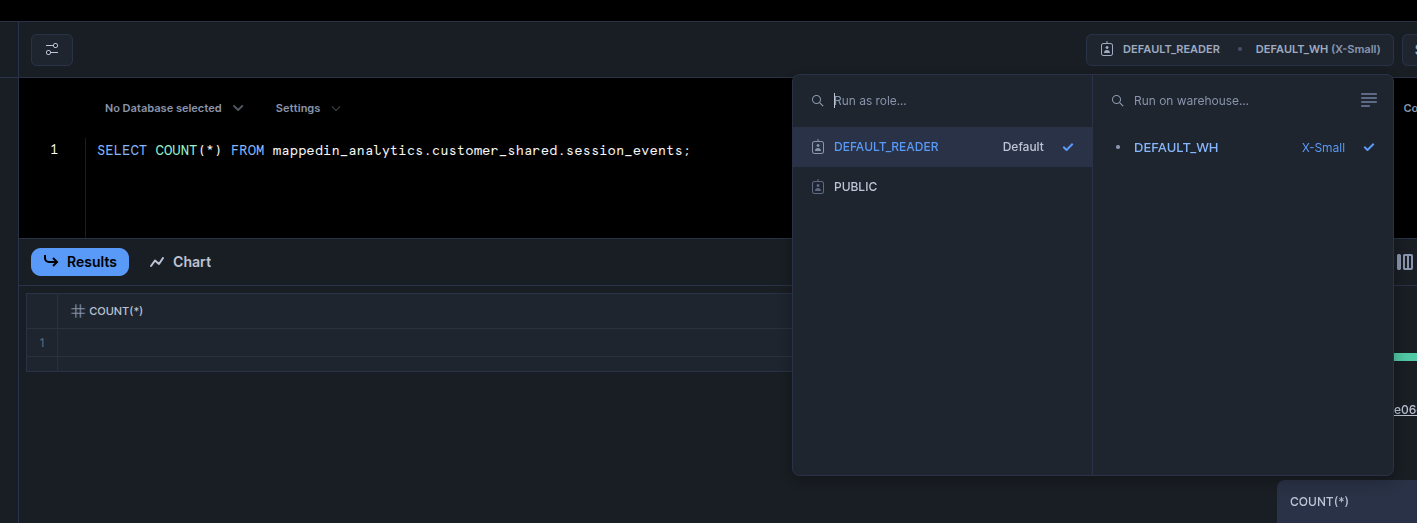
- In Snowflake, SQL queries are executed using a warehouse, which functions as a dedicated compute resource (similar to a virtual machine). Warehouses provide the processing power necessary to run your analytics queries and return results.
- Warehouse Selection: When executing SQL queries, you have the ability to specify:
- Role: Determines your access permissions and data visibility
- Warehouse: Controls the compute resources allocated to your query execution
Important Details
- Timezone settings: We can configure your account to display data in your preferred timezone
- Single sign-on (SSO): If your organization uses SSO, we can set that up for you during the account creation process
- Usage limitations: Your reader account will have some built-in limitations that we'll explain when we set up your account